

The assistant is automatically enabled on Pro and Custom plans.
About the assistant
The assistant answers questions about your documentation through natural language queries. Users access the assistant on your documentation site, so they can find answers quickly and succeed with your product even if they don’t know where to look. The assistant uses agentic RAG (retrieval-augmented generation) with tool calling. When users ask questions, the assistant:- Searches and retrieves relevant content from your documentation to provide accurate answers.
- Cites sources and provides navigable links to take users directly to referenced pages.
- Generates copyable code examples to help users implement solutions from your documentation.
- Frequently asked questions that might need better coverage.
- Content gaps where users struggle to find answers.
- Popular topics that could benefit from additional content.
How indexing works
The assistant automatically indexes your published documentation to answer questions accurately. When you publish changes, the assistant immediately indexes new, updated, or deleted content. The assistant does not index draft branches or preview deployments. By default, the assistant does not index hidden pages. To include hidden pages in the assistant’s index, setseo.indexing: "all" in your docs.json. See Hidden pages for more information.
How the assistant handles unknown questions
The assistant only answers questions based on information in your documentation. If it cannot find relevant information after searching, it responds that it doesn’t have enough information to answer. You can set a deflection email so that the assistant provides your support email to users whose questions it cannot answer. This gives users a path forward, even if the documentation doesn’t address their specific question.Configure the assistant
The assistant is active on Pro and Custom plans by default. Manage the assistant from the Assistant Configurations page of your dashboard. Enable or disable the assistant, configure response handling, add default questions, and manage your message allowance.Enable or disable the assistant
Toggle the assistant status to enable or disable the assistant for your documentation site.

Set deflection email
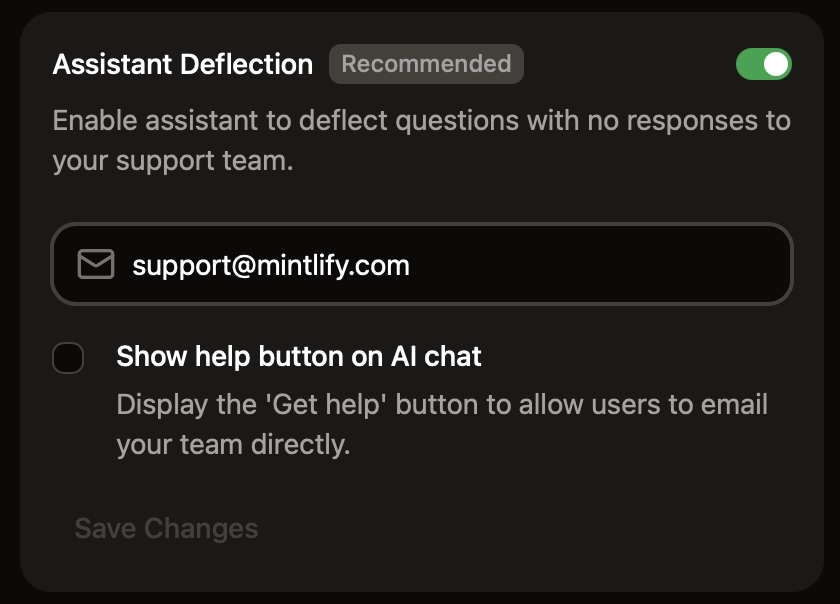
In the Response Handling section, enable the assistant to redirect unanswered questions to your support team. Specify an email address for the assistant to give to users if it cannot answer their question. You can also enable a persistent button to allow users to email your team directly from the assistant chat panel.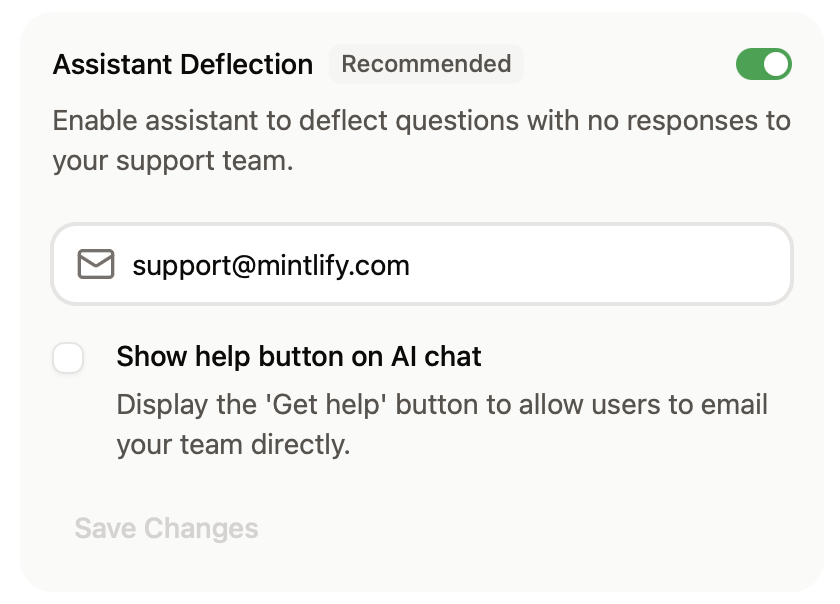
Search domains
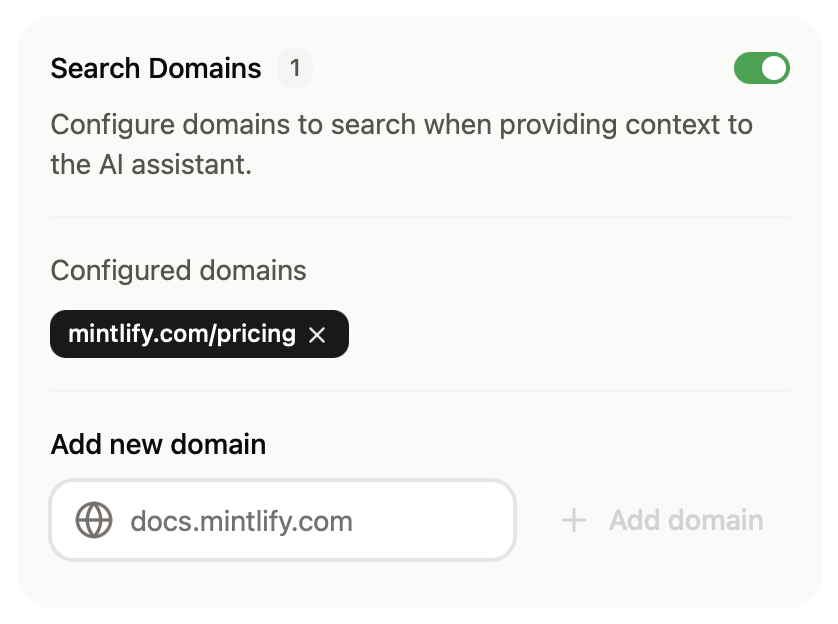
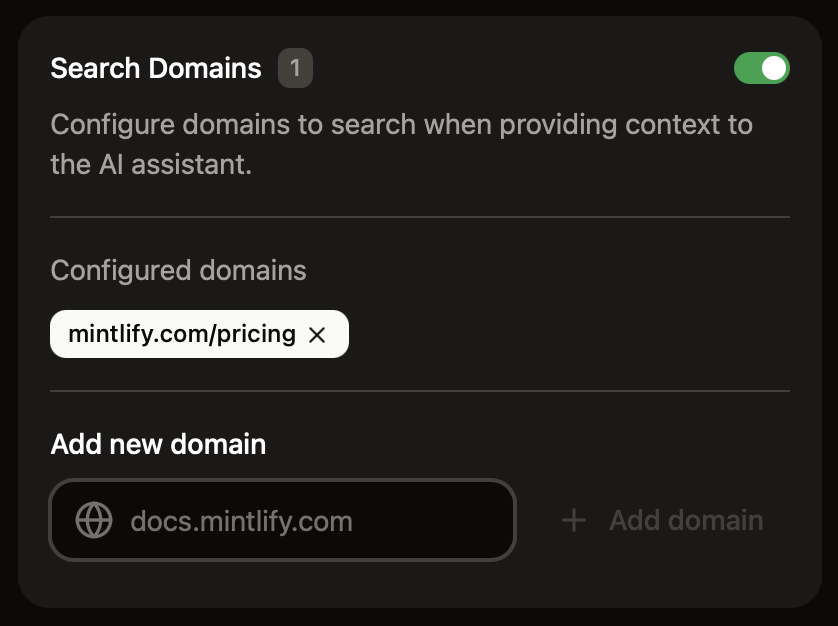
In the Response Handling section, configure domains that the assistant can search for additional context when answering questions.- Domains must be publicly available.
- Domains that require JavaScript to load are not supported.
- Domain-level filtering
example.com: Search only theexample.comdomaindocs.example.com: Search only thedocs.example.comsubdomain*.example.com: Search all subdomains ofexample.com
- Path-level filtering
docs.example.com/api: Search all pages under the/apisubpath
- Multiple patterns
- Add multiple entries to target different sections of sites
Add sample questions
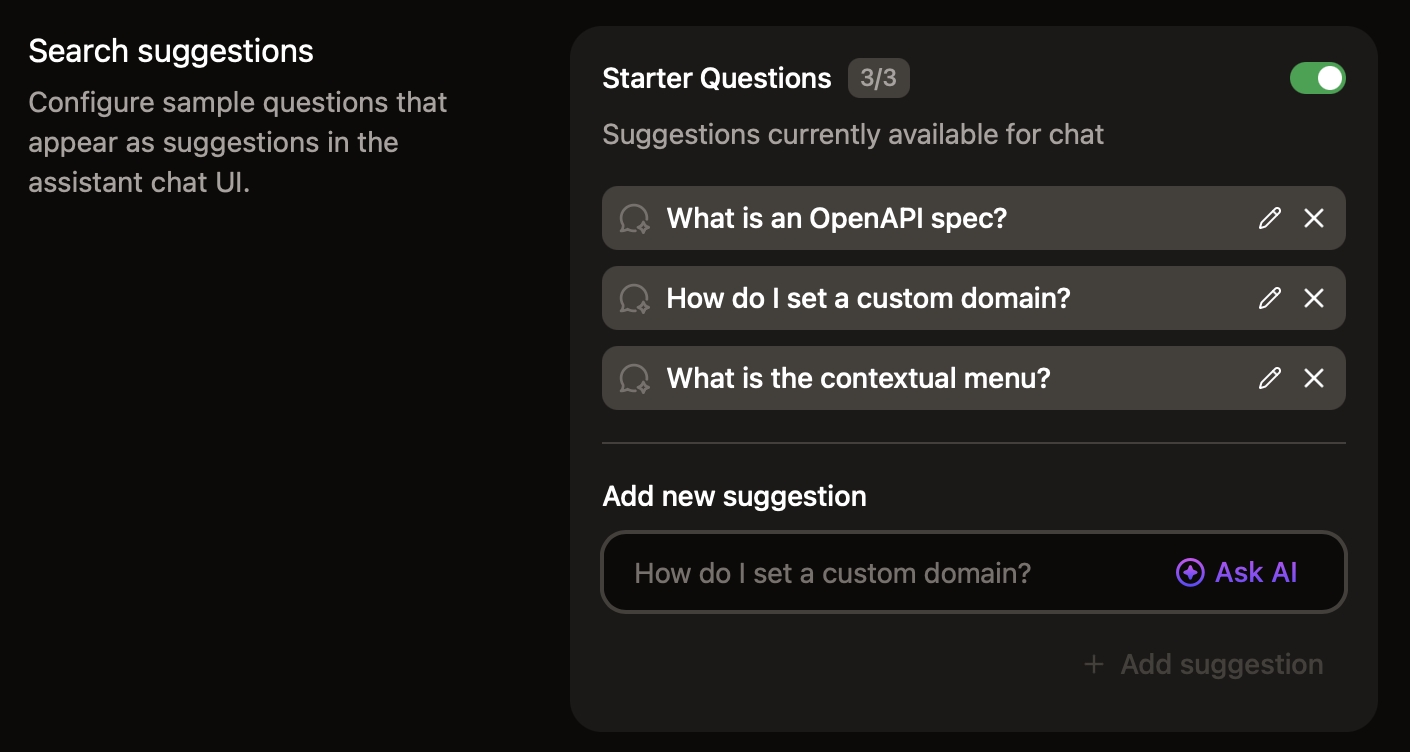
Help your users begin conversations with the assistant by adding starter questions. Add commonly asked questions or questions about topics that you want your users to know about. Click Ask AI for recommended questions based on your documentation.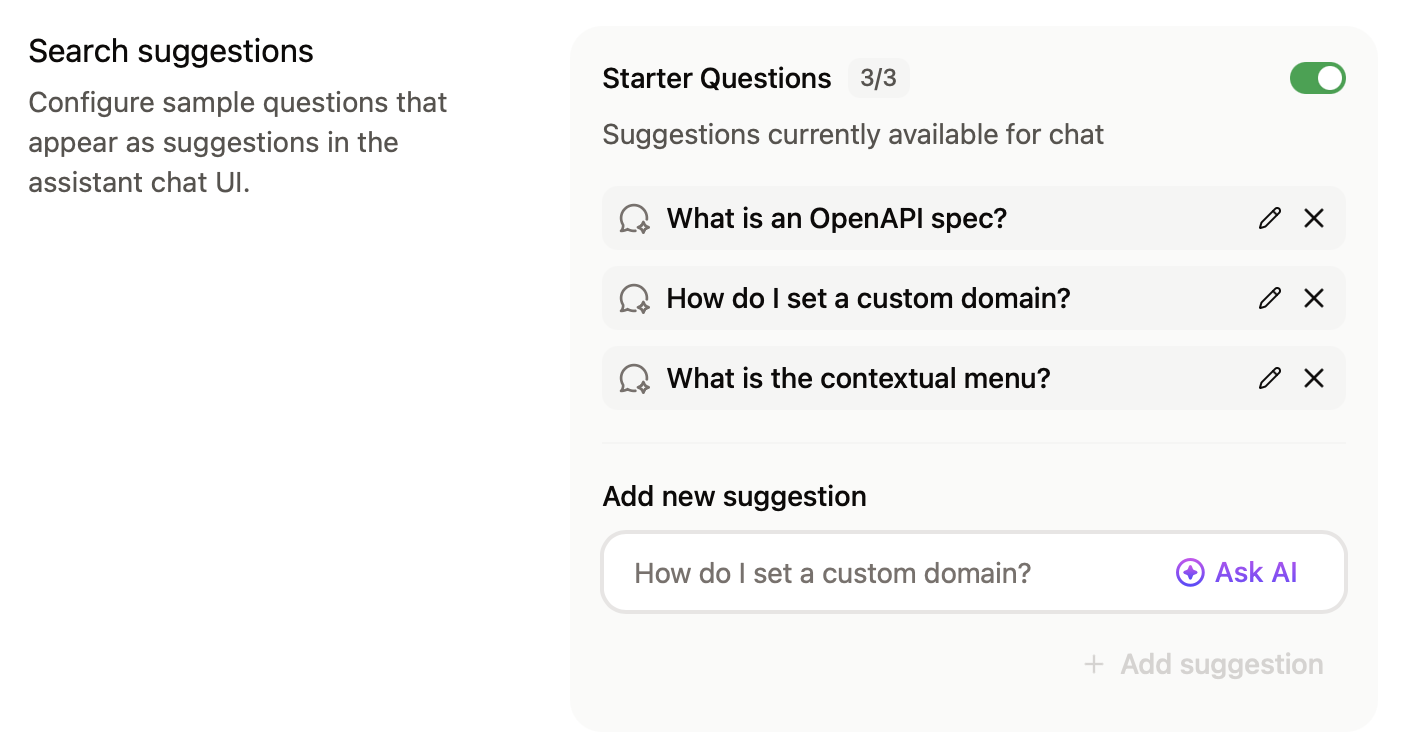
Manage billing
The assistant uses tiered message allowances. A message is any user interaction with the assistant that receives a correct response. If you have unused messages, up to half of your message allowance can carry over to the next billing cycle. For example, if you have a 1,000 message allowance and you use 300 messages, 500 messages carry over to the next billing cycle giving you a total of 1,500 messages for the next billing cycle. By default, the assistant allows overages. You can disable overages to avoid incurring additional costs for usage beyond your tier. If you reach your message allowance with overages disabled, the assistant is unavailable until your message allowance resets. If you allow overages, each message beyond your allowance incurs an overage charge, but occasional overages may be cheaper than upgrading to a higher tier depending on your usage.Change your assistant tier
Assistant tiers determine your monthly message allowance and pricing. View and change your current tier on the Billing tab of the assistant page in your dashboard. In the Spending Controls section, select your preferred tier from the dropdown menu. Upgrade your tier:- Your new message allowance is available immediately.
- You pay a prorated difference for the current billing cycle.
- Your message allowance updates immediately.
- Pricing changes take effect at the start of your next billing cycle.
- Unused messages from your current tier do not carry over.
Allow overages
If you want to disallow overages, disable them in the Billing Controls section of the Billing tab of the assistant page in your dashboard.Set usage alerts
In the Billing Controls section, set usage alerts to receive an email when you reach a certain percentage of your message allowance.Connect apps
In the connect apps section, add the assistant to your Discord server and Slack workspace to allow users to get answers from your documentation on those platforms.Assistant insights
Use assistant insights to understand how users interact with your documentation and identify improvement opportunities. The assistant page shows usage trends for the month to date. View more detailed insights on the analytics page.Make content AI ingestible
Structure your documentation to help the assistant provide accurate, relevant answers. Clear organization and comprehensive context benefit both human readers and AI understanding.Structure and organization
- Use semantic markup.
- Write descriptive headings for sections.
- Create a logical information hierarchy.
- Use consistent formatting across your docs.
- Include comprehensive metadata in page frontmatter.
- Break up long blocks of text into shorter paragraphs.
Context
- Define specific terms and acronyms when first introduced.
- Provide sufficient conceptual content about features and procedures.
- Include examples and use cases.
- Cross-reference related topics.
- Add hidden pages with additional context that users don’t need, but the assistant can reference.
Use the assistant
Users have multiple ways to start a conversation with the assistant. Each method opens a chat panel on the right side of your docs. Users can ask any question and the assistant searches your documentation for an answer. If the assistant cannot retrieve relevant information, the assistant responds that it cannot answer the question. Add the assistant as a bot to your Slack workspace or Discord server so that your community can ask questions without leaving their preferred platform.UI placement
The assistant appears in two locations: as a button next to the search bar and as a bar at the bottom of the page.



Keyboard shortcut
Open the assistant chat panel with the keyboard shortcut Command + I on macOS and Ctrl + I on Windows.Highlight text
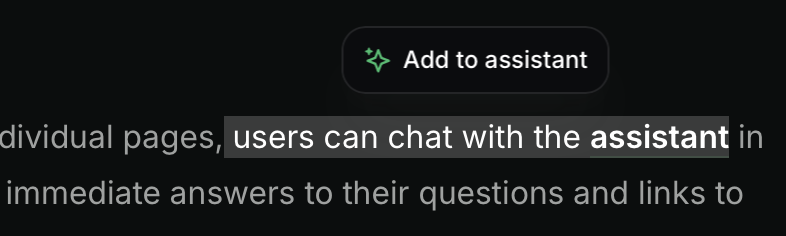
Highlight text on a page and click the Add to assistant pop up button to open the assistant chat panel and add the highlighted text as context. You can add multiple text snippets or code blocks to the assistant’s context.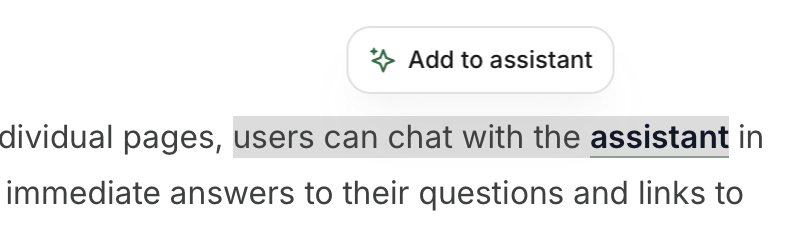
Code blocks
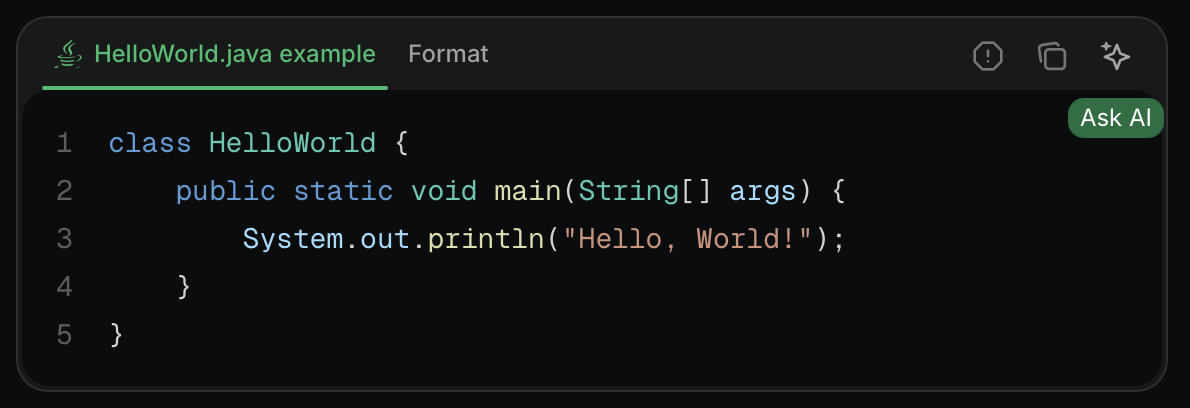
Click the Ask AI button in a code block to open the assistant chat panel and add the code block as context. You can add multiple code blocks or text snippets to the assistant’s context.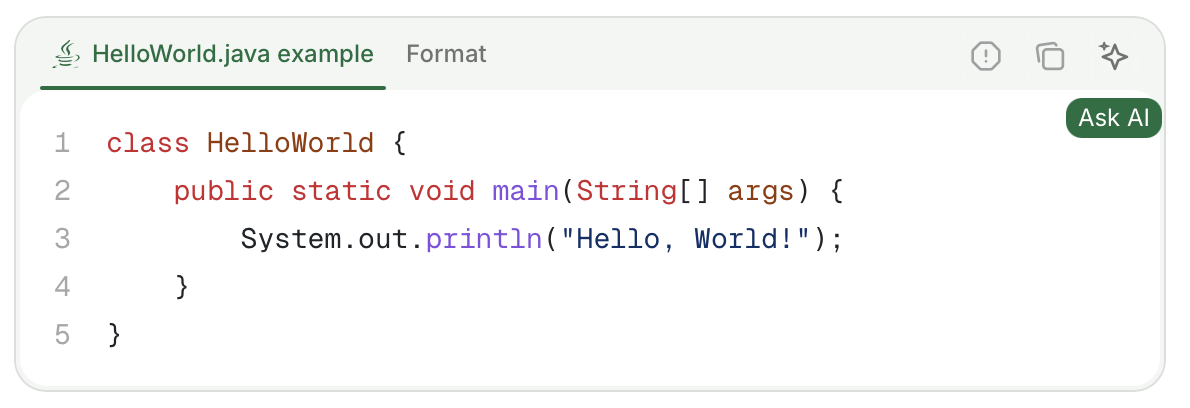
URLs
Open the assistant with a URL query parameter to create deep links that guide users to specific information or share assistant conversations with pre-filled questions.- Open the assistant: Append
?assistant=opento open the assistant chat panel when the page loads. - Open with a pre-filled query: Append
?assistant=YOUR_QUERYto open the assistant and automatically submit a question.
Troubleshooting
Assistant chat bar not visible
Assistant chat bar not visible
If the assistant UI is not visible in specific browsers, you may need to submit a false positive report to EasyList. Browsers that use the EasyList Cookies List like Brave and Comet sometimes block the assistant or other UI elements. The EasyList Cookies List includes a domain-specific rule that hides fixed elements on certain domains to block cookie banners. This rule inadvertently affects legitimate UI components.Submit a false positive report to EasyList to request removal of the rule. This resolves the issue for all users once the filter list updates.